Upload Images
Navigate to Upload WSI Page
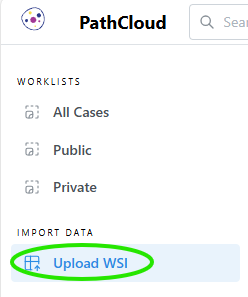
Click "Upload WSI" link from sidebar under the "Import Data" category.
Enter Metadata
Once navigating to the Upload WSI page, there will be two options for uploading metadata before adding an image. If you have a JSON file containing metadata, please see JSON Metadata Entry, otherwise continue below for steps on manual metadata entry.
Manual Metadata Entry
Steps:-
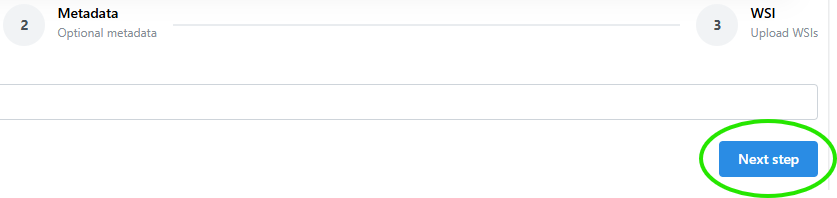
Skip the "Upload Metadata" section by clicking "Next step" to move directly to the manual metadata entry fields.
-
Fill in the applicable fields within the "Metadata" step as needed.
-
Click "Next step" To move to the "WSI" section of the upload process.
JSON Metadata Entry
If you have already entered metadata from the above steps, skip this section and go to Add an Image.
-
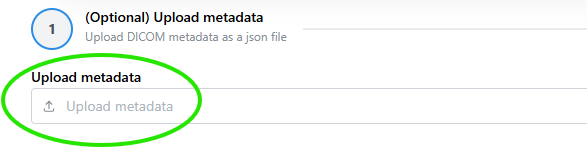
Click the empty box under "Upload Metadata" to select and upload a JSON file containing your chosen metadata. This will allow some of the fields to be automatically populated with data on the manual metadata entry page.
-
Once the upload completes, click "Next step" to move to the Manual Metadata Entry section.
-
Confirm the metadata fields contain the correct information from the JSON file before continuing.
-
Click "Next step" To move to the "WSI" section of the upload process.
Add an Image
steps:- Drag your images to the indicated area or click on it to select WSIs to upload from your local file system.
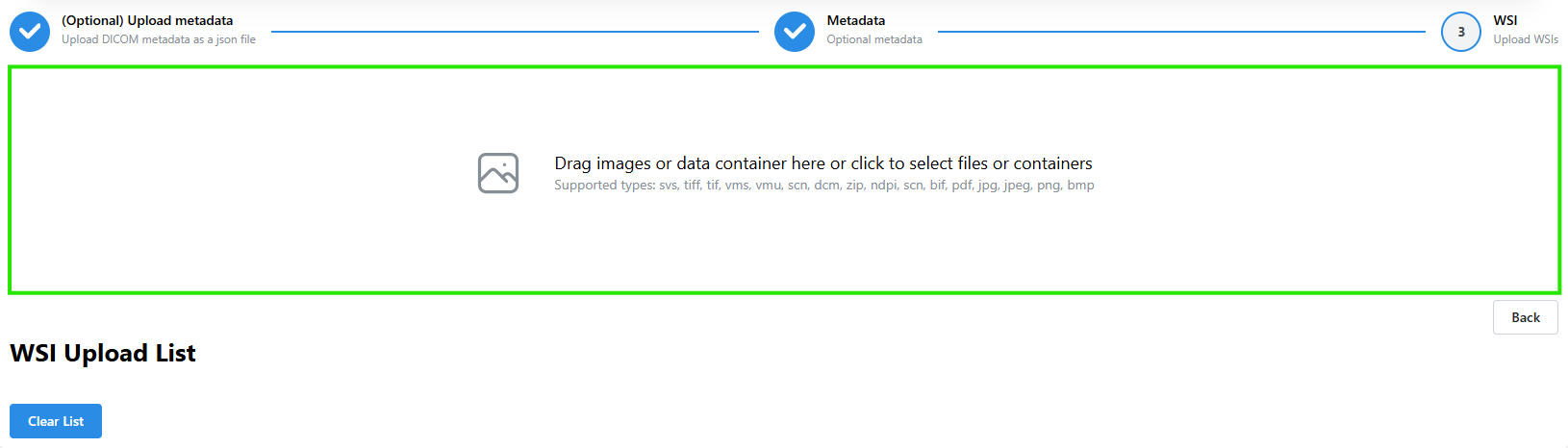
Ensure your WSI files are one of the valid file types, otherwise your image will not upload.
- Wait until the upload completes, signified by a green "Finished" bar. After this has occurred, you may view information on the upload by clicking the "Results" button.

You can clear the item from the list by clicking the 'x' at the top right corner of the results bar. You can also clear the entire upload list by clicking the "clear list" button.
However, if the upload already completed this will not remove the image from the private archive. See Delete an Image for info on how to remove a WSI from a private worklist.
Add Multiple Images
Select or drag a zip folder containing all the images you wish to upload at once and wait for the bar to reach the "Finished" status.
If you are missing images from the finished upload process, make sure the images are one one of the valid file types.
View Uploaded Records
Click the "My Archive" link on the left sidebar under the "Worklists - Images" category to view your uploaded WSIs. Please see Use Image Worklists and View Images for more information.