Clinical Viewer Overview
If you do not have an image open in Clinical Viewer, please see View Images for steps on viewing a WSI.
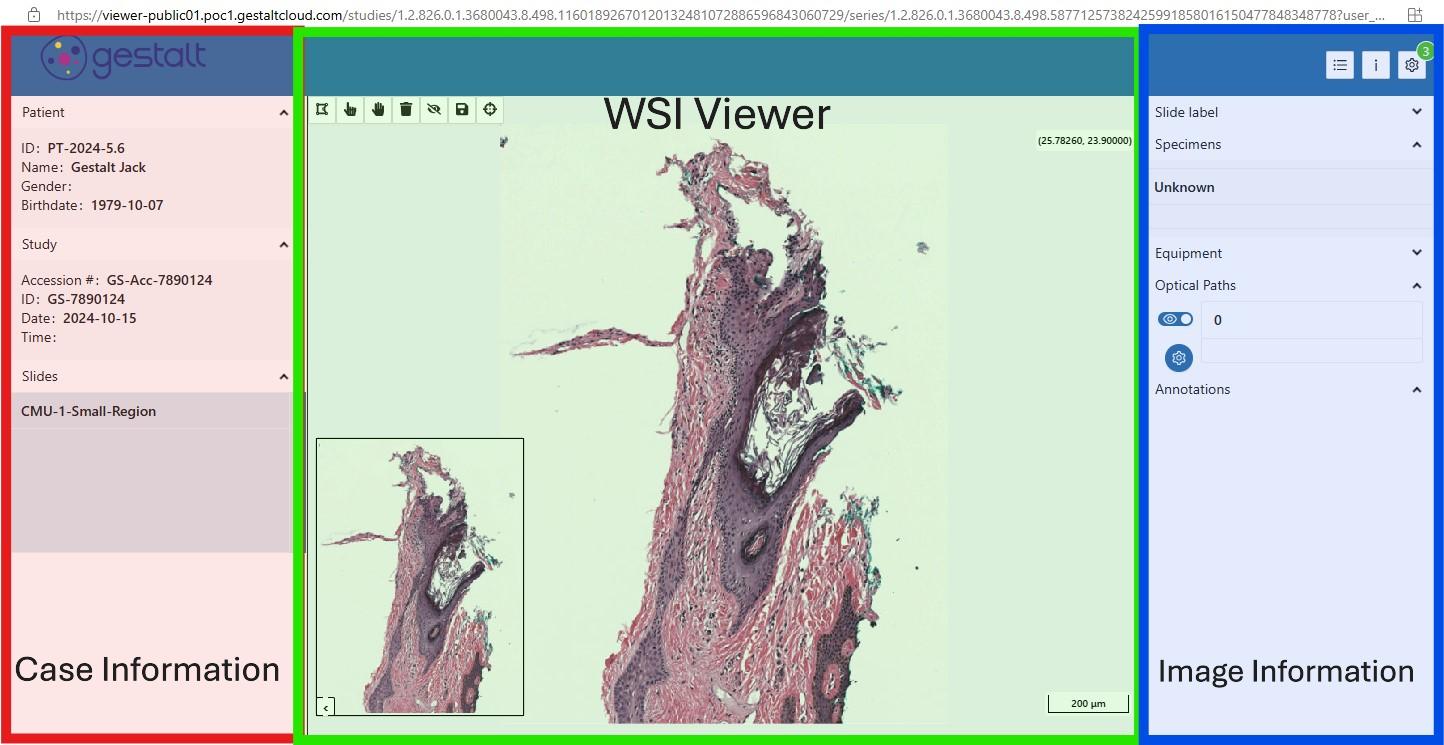
Clinical Viewer provides an easy way to view and annotate WSIs. The tool can be broken up into three main components which are highlighted below from left to right as Case Information, WSI Viewer, and Image Information.
Case Information
Each image That is launched in the Clinical Viewer will have a Case Information pane on the left side of the window. The Patient tab contains data on the patient being examined, the Study tab will contain information pertaining to the WSI record itself, and the Slides tab contains a list of all the different WSIs available for viewing in the case.
WSI Viewer
The WSI Viewer is the middle pane of the Clinical Viewer application and is where the viewing and annotating of the image can take place. The pane includes Annotation Tools on the top left, a preview of the entire specimen on the bottom left, and a slide scale display on the bottom right. For step-by-step guidance on utilizing this pane, please see the Clinical Viewer Image Navigation and Annotation Tools page.
Image Information
While the "Case Information" pane is used for the entire case and patient as a whole, the Image Information panel contains data specific to the slide image you are currently viewing. This includes displaying ROIs, labels, annotations, and other info.