Use Image Worklists
Understanding Image Worklists
Image worklists have a wide variety of options, filters, and presentation styles to search and sort WSIs to your preference. This page details how to navigate, filter, sort, and alter the presentation of data within the worklist.
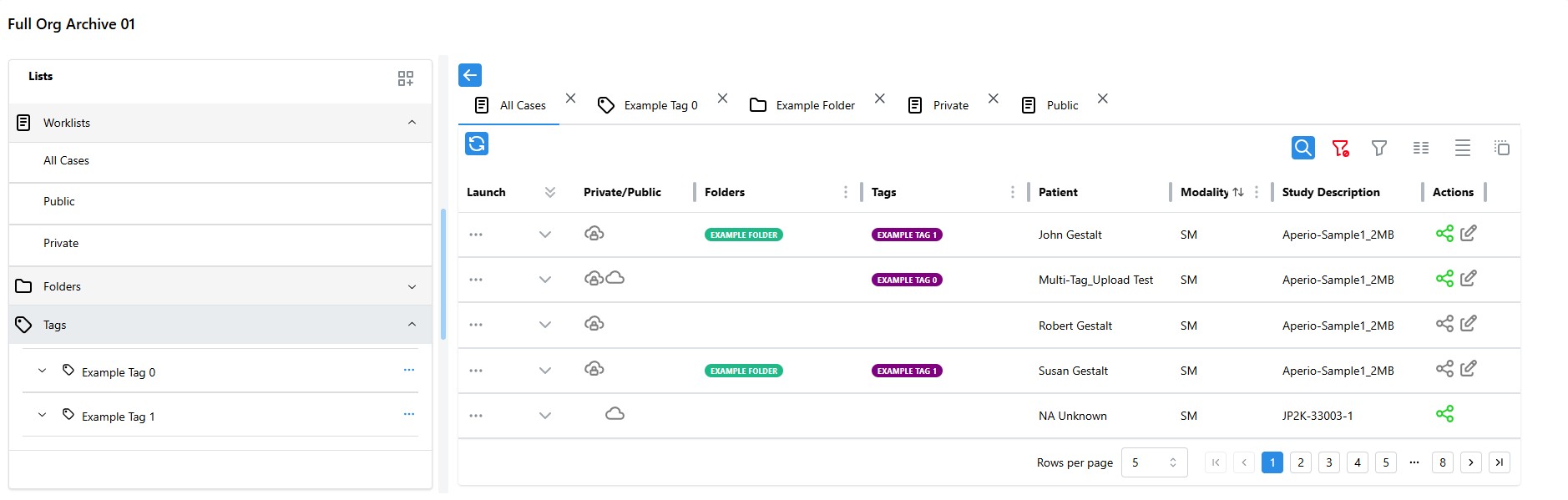
Navigate to Image Worklists
Click the Gestalt logo to open the sidebar and select the "All Cases" option to view WSIs.

If you have not yet uploaded any WSIs, you will not have any records in "Private". See Upload Images for information on uploading images to your Private archive.
Expand Lists Pane
The Study Worklist page includes a Lists pane used for viewing and selecting different Worklists, Folders, and Tags for viewing. Open the width-adjustable list pane by clicking the "Open Lists Pane" button above the Worklist Tabs.
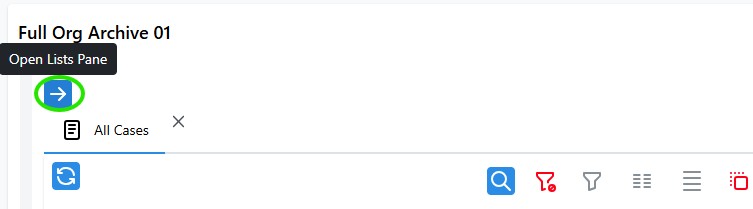
Worklist Header Bar
The worklist header bar contains many options for presenting the data housed in the archive. It can be broken down into three main components: Filtering, Data Sorting, and Presentation.
For information on using the Column Actions feature to streamline the searching, sorting, and presentation process, please see Column Options.
Filtering

-
Click the grey filter button to show/hide the filter for each applicable column.
-
Enter your filter parameters as necessary.
-
Click the blue "Apply Filters" magnifying glass button or hit the "Enter" key to search with the applied filters.
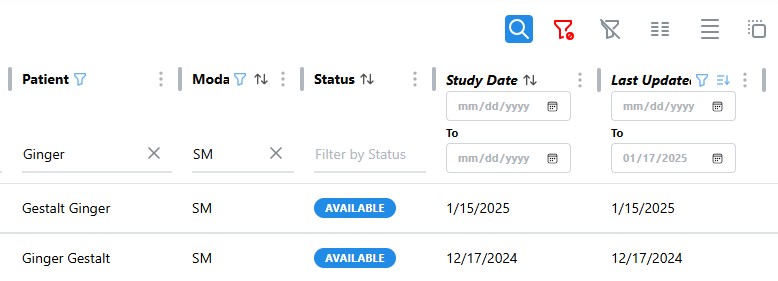
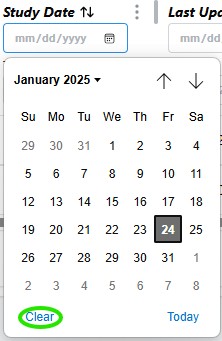
- Remove a filter parameter by clicking the 'X' next to the category you want to stop filtering by or click the clear button on a calendar date to remove it from the filter.
- Click the red "Clear All Filters" button to remove all active filters and refresh the worklist.
Data Sorting
Column Moving
Steps:- Click the "Enable/Disable Column Moving" button to toggle the ability to move the worklist columns.

- Click and drag the 6 grouped dots by a given column name, then drop the column on another to swap positions with it.

Column Ordering
Steps:-
Click the pair of arrows next to a category you wish to sort by to sort the results by ascending order in that category.

-
Click the ordering button on the category again to sort by descending order.
-
Click the pair of arrows on any other category to start ordering by that category instead.
Presentation
Various presentation options allow users to tailor their experience to what works best for them. The below steps will describe how to change some of the most likely used presentation features.
Steps:-
Click the refresh button on the top left side of the worklist to check for new records.
-
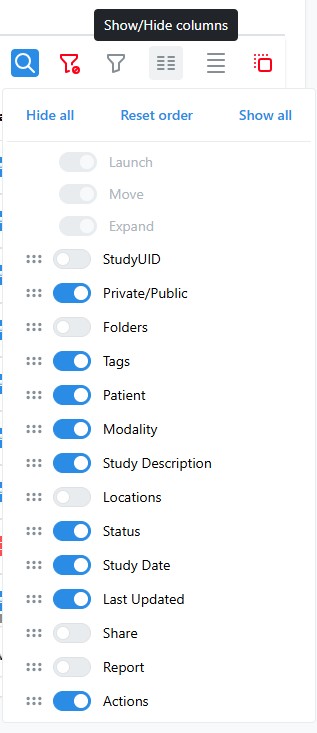
Click "Show/Hide columns" on the top right of the worklist to open a menu and choose which columns you want shown or hidden from the worklist table view. You can also reorganize columns from here if column moving is enabled.
-
Click the "Toggle Density" button to change the amount of spacing each record in the worklist has.

-
Click the "Rows per page" dropdown menu at the bottom right of the worklist to change the number of records each page will display.

-
Click the arrows next to the "Rows per page" dropdown menu to change pages.
-
Navigate between opened worklists by clicking the tabs above the Worklist Header Bar.

View Images
To view an image from the worklist page, please see View Images